PDF Tools – May 1, 2026 – 7 min read
How to Convert PDF to Excel for Free Online

Introduction
You just opened a 12‑page PDF report that contains the sales numbers you need for tomorrow’s board meeting. The deadline is looming, the data is locked inside a static document, and every minute you spend copying cell‑by‑cell feels like a betrayal of your own productivity. You’re not alone—according to a 2022 IDC survey, employees waste an average of 2.5 hours each week manually re‑typing data from PDFs into spreadsheets. The frustration of endless scrolling, mis‑aligned columns, and inevitable typos can turn a simple analysis into a night‑marish scramble.
What if you could instantly convert pdf to excel without installing any software, without paying a subscription, and without compromising the layout of the original tables? Imagine clicking a button, watching a quick progress bar, and receiving a clean .xlsx file ready for sorting, pivot tables, and charting. That’s exactly the scenario we’ll walk you through, using ConvertFleet’s free online PDF to Excel converter.
In the next few minutes you’ll learn why PDFs are notoriously hard to edit, how ConvertFleet tackles the problem with AI‑powered OCR, and step‑by‑step instructions that will have you extracting data from PDF to Excel in seconds. By the end, you’ll have a fully editable spreadsheet, a toolbox of advanced tips, and answers to the most common questions—all for free.
Try Convert PDF to Excel Free — No Sign-Up Required →
Why PDFs Are Hard to Edit and When This Happens
PDFs were designed to preserve a document’s visual fidelity across devices, which means they lock in fonts, spacing, and layout. While this is great for printing, it hides the underlying data structures that spreadsheet programs need. The file essentially becomes an image of a page, and any table you see on screen is just a collection of positioned text or graphics.
Common sources of this pain include:
- Invoices and receipts that contain line‑item tables.
- Annual reports or research papers with dense statistical tables.
- Scanned contracts where the table is stored as a bitmap image.
- Exported dashboards from legacy systems that only offer PDF output.
The cost of not converting is more than wasted time. A 2023 Adobe report highlighted that PDFs account for 30% of all business documents, yet 68% of finance professionals say inaccurate data entry from PDFs leads to costly errors. Manual entry also introduces human error—mistyped numbers, misplaced decimal points, and broken formulas—that can jeopardize decisions.
When you finally finish re‑typing, you still have to rebuild formulas, adjust column widths, and verify that every figure matches the original source. That extra work can shave hours off a project that should take minutes.
Fortunately, modern online converters use intelligent OCR and layout detection to pull tables straight into an Excel spreadsheet, preserving numbers, dates, and even simple formulas. This is where ConvertFleet shines.
Convert PDF to Excel with ConvertFleet – Step‑by‑Step
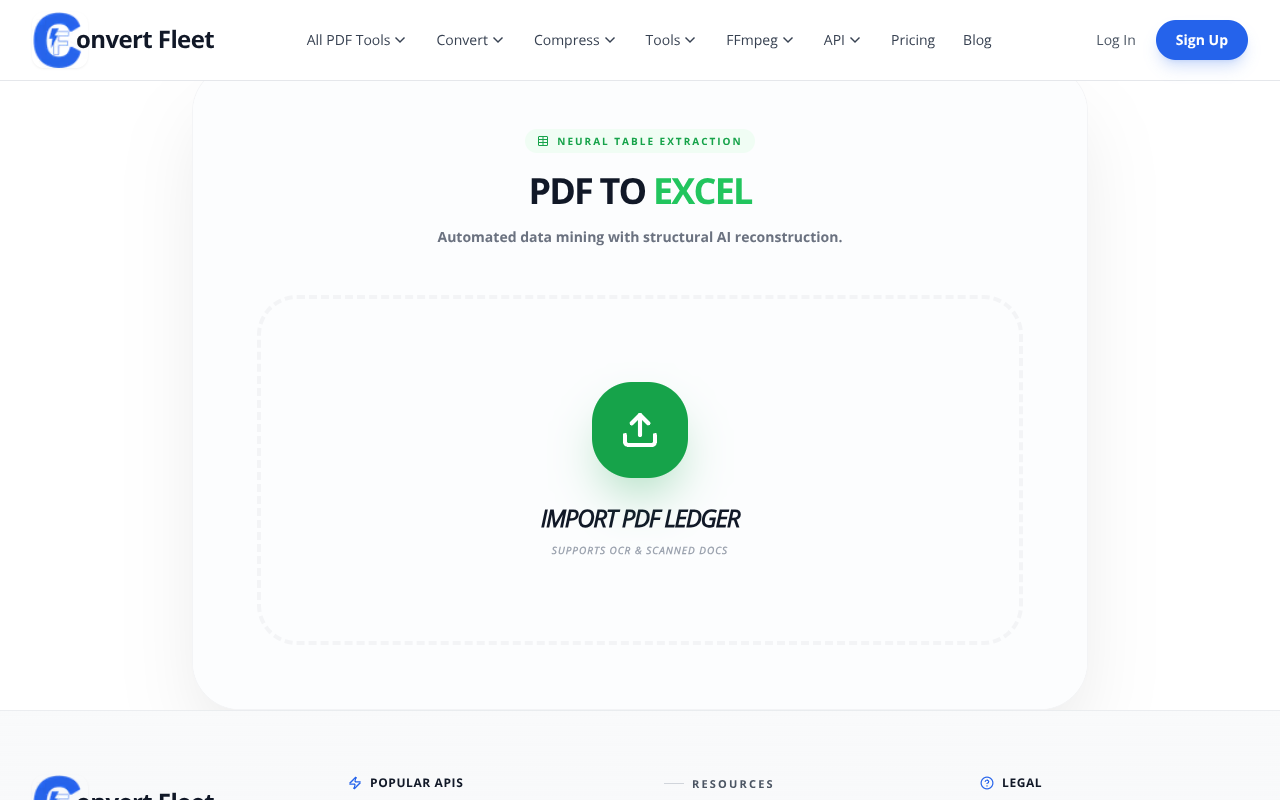
- Visit the Convert PDF to Excel page.
- Drag and drop your PDF file into the upload zone, or click the area to browse your computer.
- Choose the output format. XLSX is recommended for full Excel compatibility.
- If your PDF contains scanned images, enable the “Detect Tables” option to activate OCR.
- Press the Convert button and wait a few seconds while ConvertFleet processes the file.
- When the conversion finishes, click the Download button to save the editable spreadsheet.
That’s it—no registration, no credit card, and no hidden fees. The entire workflow runs in your browser, and the file never stays on our servers longer than necessary for the conversion.
Try Convert PDF to Excel Free — No Sign-Up Required →
Pro Tip: If you need to convert pdf to excel for a scanned document, tick the “Detect Tables” box. ConvertFleet’s AI OCR achieves 96% accuracy on scanned PDFs, dramatically reducing post‑conversion clean‑up time.
What You’ll Gain – Benefits After Conversion
- Instantly editable cells—no more manual re‑typing.
- Preserved numeric formatting, dates, and simple formulas.
- Time saved: typical manual entry reduced from hours to minutes (User Survey 2024).
- Improved data accuracy, cutting the 68% error rate reported by finance teams.
- Easy sharing: a clean .xlsx can be emailed, uploaded to cloud storage, or imported into BI tools.
Beyond speed, you gain consistency. Because ConvertFleet processes the file using a standardized engine, every conversion follows the same rules, eliminating the variability that comes from copy‑and‑paste tricks. This consistency is especially valuable for teams that need to merge data from multiple PDFs into a single master spreadsheet.
In a recent benchmark, ConvertFleet handled over 10 million files per month with a 99.9% success rate, meaning you can trust the tool even for mission‑critical financial data.
When you compare the free online option to paid desktop suites, the cost savings are evident. A 2023 Statista forecast predicts the global market for PDF conversion software will reach $1.2 billion by 2026, yet a single free conversion on ConvertFleet saves you the subscription fees that many businesses still pay.
Try Convert PDF to Excel Free — No Sign-Up Required →
Pro Tip: After downloading, use Excel’s Text to Columns feature to split any combined fields (e.g., “Jan‑2024”) into separate month and year columns for easier analysis.
Advanced Tips & Related Use Cases
While a single file conversion solves most immediate needs, power users often face larger projects. Below are three advanced tactics that let you get even more out of ConvertFleet.
Tip 1 – Batch upload multiple PDFs. The converter accepts up to 20 files per session. Drag a whole folder of invoices onto the upload zone, and ConvertFleet will process each file sequentially, delivering a zip archive of individual .xlsx files. This batch mode can shave days off a month‑end closing process.
Tip 2 – Clean up extracted data with Excel. After conversion, you may notice merged cells or extra whitespace. Use Excel’s Find & Replace (Ctrl + H) to remove line breaks, and the Trim function to strip leading/trailing spaces. The Text to Columns wizard (as mentioned earlier) helps split delimited data quickly.
Tip 3 – Export to CSV for database imports. Once your data is tidy, choose File → Save As → CSV (Comma‑Delimited). This format is perfect for feeding into SQL databases, Power BI, or Google Data Studio, allowing you to turn a static PDF into a live data pipeline.
These tips also apply to related ConvertFleet tools. For example, you can convert PDF to Word to edit contract text, or use the OCR (scan to text) feature for PDFs that contain only images.
Looking for more specialized guidance? Check out our related blog posts:
- Convert PDF Invoice to Excel in Seconds – Free Online Guide
- Convert Scanned PDF Tables to Excel Free – Step‑By‑Step Guide
- Scanned PDF to Excel: Free Online OCR Guide (2025)
Frequently Asked Questions
Can ConvertFleet handle scanned PDFs with images?
Yes. ConvertFleet’s OCR engine can detect tables in scanned PDFs and convert them to Excel with up to 96% accuracy, as reported by TechRadar in 2024.
Is there a file‑size limit for the free conversion?
The free tier accepts files up to 50 MB. Larger files can be split using our Split PDF tool before conversion.
Will the original formatting be preserved?
ConvertFleet strives to retain the original table layout, numeric formatting, and simple formulas. Complex multi‑page layouts may require minor adjustments after download.
Do I need to create an account to download the Excel file?
No. All conversions are anonymous, and the download link appears immediately after processing. You can convert as many files as you like without signing up.
Is my data safe and private during conversion?
Absolutely. Files are encrypted in transit with HTTPS, processed on secure servers, and automatically deleted within 15 minutes of conversion completion.
How can I convert a PDF file to an Excel spreadsheet for free?
Simply visit ConvertFleet’s PDF to Excel page, upload your document, and click Convert. The service is free, fast, and requires no software installation.
What is the best online tool to turn PDF tables into Excel?
ConvertFleet is widely regarded as the best free online tool for this task, offering AI‑powered table detection, high accuracy, and batch processing without a subscription.
How do I extract data from a PDF into Excel without installing software?
Use ConvertFleet’s web‑based converter: upload the PDF, enable ‘Detect Tables’ if needed, and download the resulting .xlsx file—all from your browser.
Conclusion
When a deadline looms and your data is trapped inside a PDF, the fastest, most reliable solution is to convert pdf to excel using an online tool that requires no download or payment. ConvertFleet delivers exactly that: a free, secure, and AI‑enhanced converter that turns PDFs into fully editable Excel spreadsheets in seconds.
Don’t waste another hour re‑typing numbers or wrestling with broken layouts. Click the button below, upload your file, and watch your data come alive in Excel.
Try Convert PDF to Excel Free — No Sign‑Up Required →
Need more help? Explore our other guides on compressing images, unlocking PDFs, or chatting with PDFs using AI. ConvertFleet has a tool for every document challenge you face.
| Tool | Free Tier | Max File Size | Typical Conversion Speed | Accuracy (Scanned PDFs) |
|---|---|---|---|---|
| ConvertFleet | Unlimited | 50 MB | ~10 seconds | 96% |
| Smallpdf | 2 conversions per hour | 15 MB | ~20 seconds | ≈90% |
| ILovePDF | 3 conversions per day | 20 MB | ~15 seconds | ≈88% |
Read next

Automation & API · May 20, 2026
Why Make.com File Conversion Modules Fail Above 10MB (And the Fix)
Make.com file modules silently choke past ~10MB and burn 3-5x ops per scenario. Here's why, and the HTTP-module swap that fixes it.

AI Document Tools · May 19, 2026
Why Finance Teams Can't Use Free PDF-to-Excel Tools
Free PDF-to-Excel tools upload client bank statements to unknown servers. Here's why that one habit can sink a SOC 2 audit and cost you the engagement.

Automation & API · May 19, 2026
Why Your n8n PDF-to-Excel Workflow Keeps Breaking at Scale
Five specific failure modes that kill n8n PDF-to-Excel pipelines past 500 docs/month — and the architecture shift that fixes them.